 EN_AU
EN_AU  DE
DE  EN
EN  FR
FR  ES
ES  IT
IT  NO
NO  PL
PL  EN_NZ
EN_NZ  FI
FI  LT
LT  SL
SL  SK
SK  CZ
CZ If the ICU app shows the status „Review required“, does that mean the camera has a
has been unable to send a successful status message to the ICU Cloud for some time.
The cause is usually a dropped mobile connection or insufficient
power supply, a faulty SD card or outdated firmware.
Please follow these steps in order:
Start the camera and check the status message
Set the camera to SETUP and wait for up to 3 minutes without pressing any buttons.
Please pay attention to the messages on the display:
- Is the signal strength displayed?
- Does „4G“, „LTE“, „3G“ or „2G“ appear above the signal bars?
- Does the message „Connection OK“ appear?
- Does „Status OK“ or „Status message successful“ appear afterwards?
If one of these status messages appears, the camera has successfully connected to the mobile network and
connected to the ICU server. Then take a test photo straight away and check whether it
appears in the ICU app.
If no status message appears:
- Switch the camera to OFF.
- Please wait for about 30 seconds.
- Set the camera to SETUP again.
- Please wait up to 3 minutes for the status message.
If the status message still does not appear, reset the camera. The exact
You can find the procedure in section „4. Resetting the camera“.
Check the power supply
The camera requires significantly more power to transmit status updates and images than
for image capture only. You should therefore check:
- The battery level on the camera display.
- The age of the batteries or rechargeable batteries used.
- Check the battery terminals for dirt or corrosion.
- Check that all batteries or rechargeable batteries are inserted correctly.
Recommendations:
- We recommend using high-quality lithium batteries.
- Replace the batteries if they have been in use for a long time.
- Fully charge used 18650 batteries.
- Only use 18650 batteries that are all the same, with the same charge level and the same
Capacity. - Check that the correct battery type (AA or 18650) is selected in the menu.
Check the SD card for errors
Please therefore check the following:
- Use an SD card with a capacity approved for your camera model.
- Depending on the camera model, newer models support up to 128 GB.
- Some older camera models only support SD cards up to 32 GB.
- The SD card should always be formatted directly in the camera, not on a computer.
- If only zeros are displayed for the maximum number of images, the SD card may be damaged
- be.
Recommended procedure:
- Switch off the camera.
- Remove the SD card and reinsert it.
- Select „Format SD card“ from the camera menu.
- Restart the camera and check whether the SD card is now recognised correctly.
If reformatting does not improve the situation, the SD card should be replaced with a new, compatible one
The SD card needs to be replaced.
Reset camera
If the status message does not appear despite a sufficient power supply and a working SD card,
It is advisable to reset the camera.
To perform the reset:
- Open the camera menu.
- Under „Settings“, select „Reset camera“.
- Confirm the reset.
- Then switch off the camera.
- Restart the camera in SETUP mode.
- Please wait up to 3 minutes for the message „Status OK“ or „Status message successful“ to appear.
Update firmware
Outdated firmware versions can cause communication problems or may already
contain known errors.
Check whether a firmware update is available for your camera. You can find the latest firmware
At the link below, click on your chosen camera and select the tab
„Firmware“: https://help.icuserver.com/support
After a successful firmware update:
- Restart the camera.
- Switch back to SETUP.
- Check the connection and status message.
- Send a test photo.
Check the location and reception
If none of the previous steps have worked:
- Check that the antenna is securely screwed in place.
- Check the signal strength on the display.
- Test the camera in a location where you know there is good mobile phone coverage.
An inadequate power supply may result in images or status messages not
can be transmitted reliably.
When should support be called in?
If, despite a successful power connection, a working SD card, and sufficient
Mobile network coverage, current firmware version and successful status message; the status remains
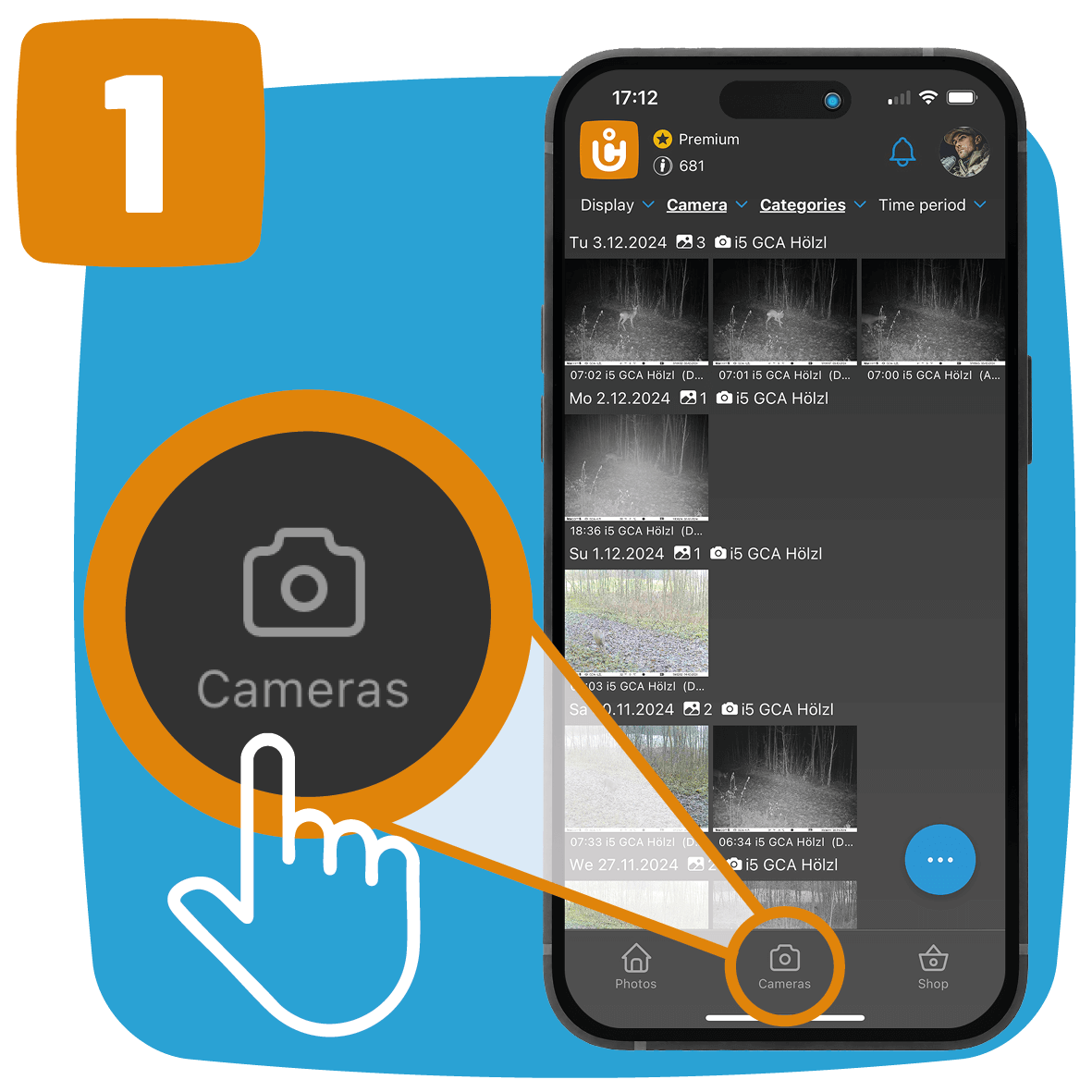
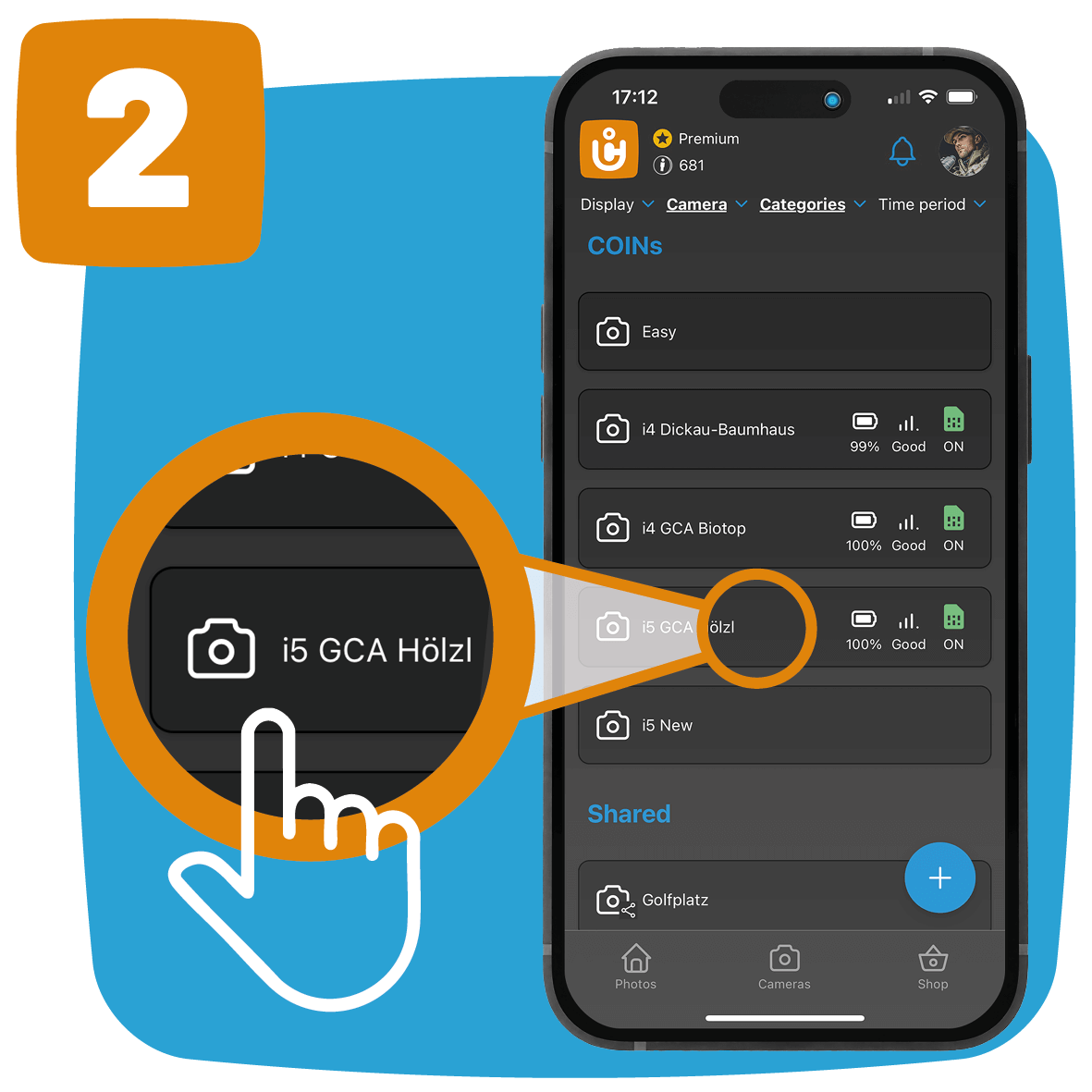
„If “Check required” is displayed, first refresh the camera overview in the
ICU app.
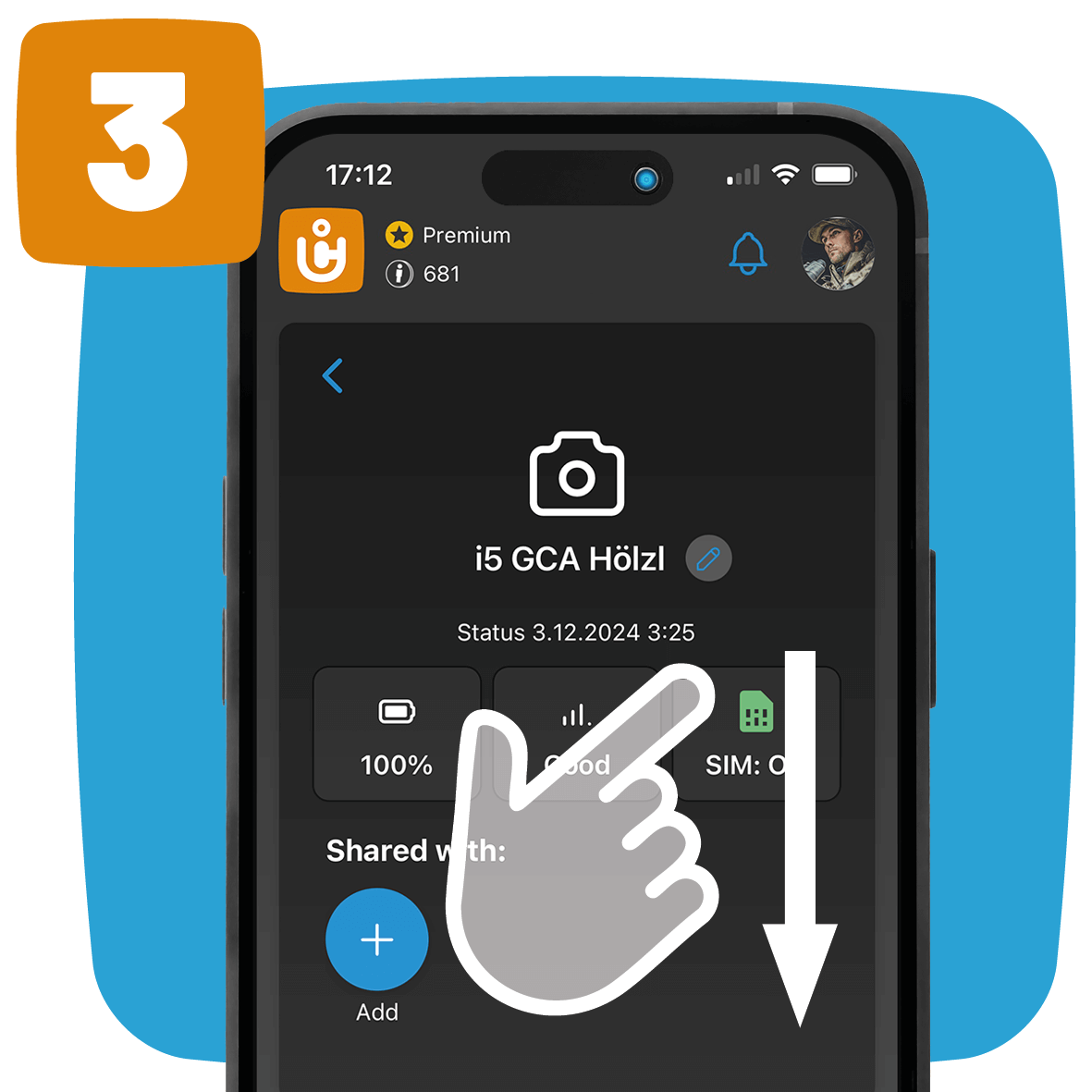
The display is not updated in real time. Following a successful status message or a
Once the test photo has been sent successfully, you may need to adjust the view by dragging down the
Update the camera list.
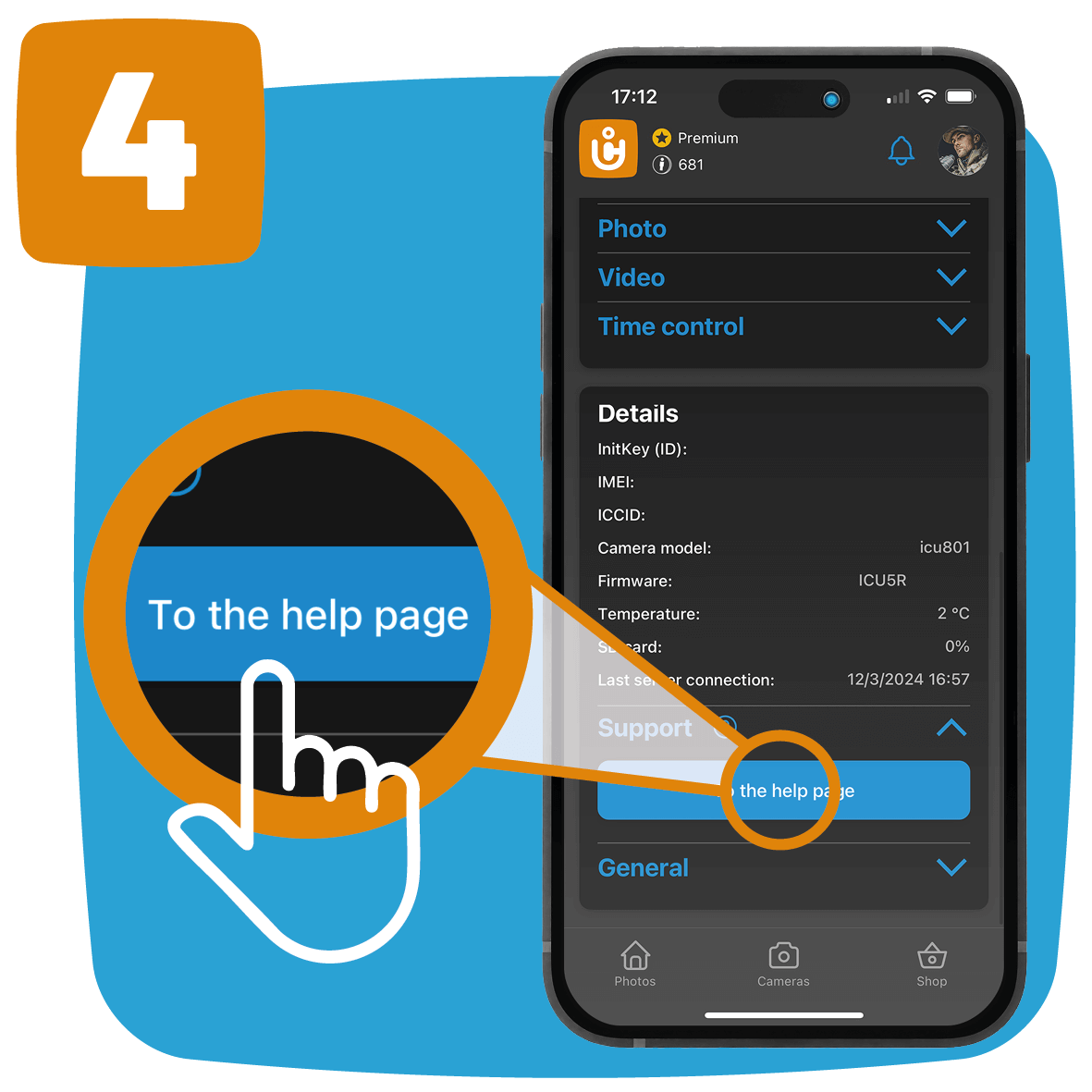
If the issue persists, there may be a hardware fault or a
more serious fault. In this case, you can directly Support ticket with our
Create customer service.